
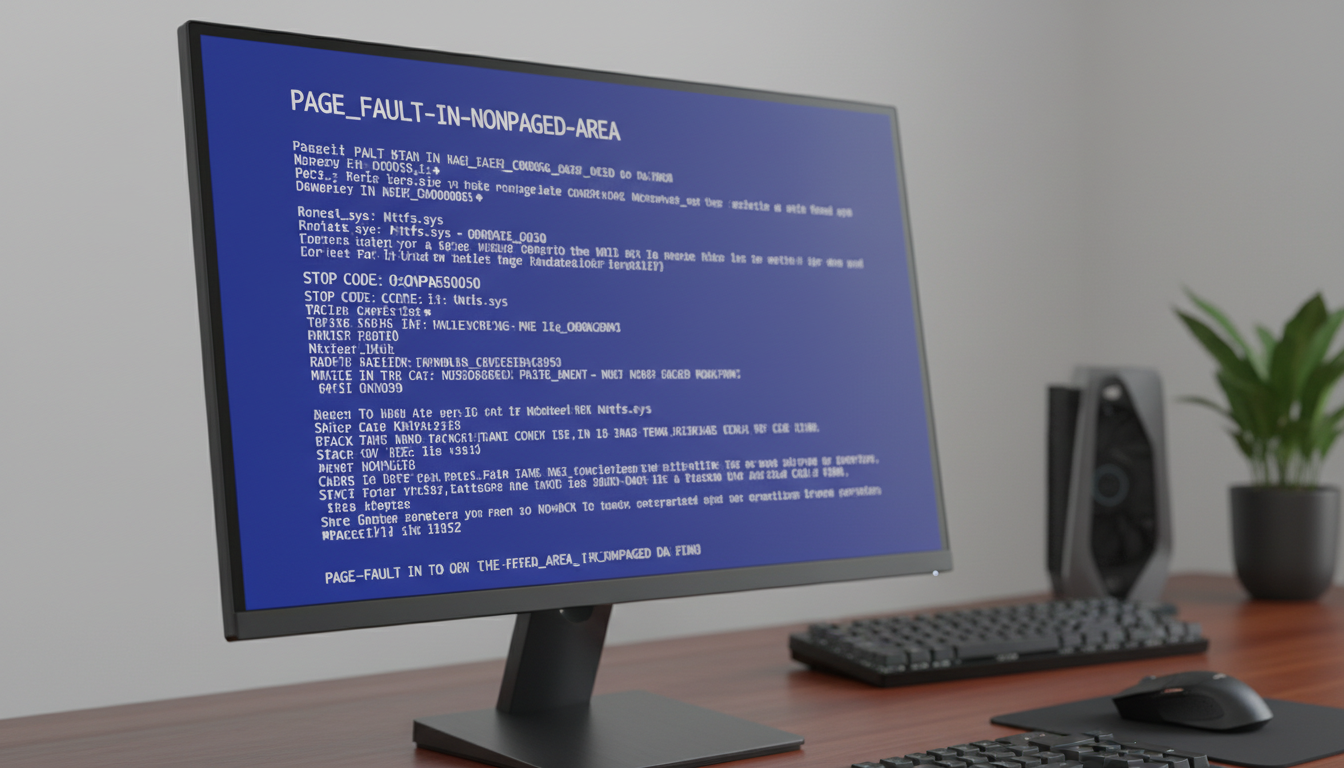
Understanding the PAGE_FAULT_IN_NONPAGED_AREA Error
If you’ve ever been working on your computer and suddenly encountered a blue screen with the cryptic message “PAGE_FAULT_IN_NONPAGED_AREA,” you know how frustrating it can be. This error typically indicates a problem with your system’s memory or drivers trying to access memory that doesn’t exist.
What Causes This Blue Screen Error?
The PAGE_FAULT_IN_NONPAGED_AREA error usually stems from one of these issues:
- Faulty RAM modules — Damaged or incompatible memory sticks
- Outdated or corrupt drivers — Especially graphics, chipset, or storage drivers
- Hard drive errors — Bad sectors or file system corruption
- Malware or virus infections — Malicious software interfering with system files
- Windows system file corruption — Critical OS files damaged or missing
Step 1: Boot Into Safe Mode
The first thing I did was boot into Safe Mode to isolate the problem. Here’s how:
- Restart your computer and press F8 repeatedly during boot (or hold Shift while clicking Restart)
- Select Troubleshoot > Advanced Options > Startup Settings
- Click Restart and then press 4 or F4 to enter Safe Mode
Step 2: Run Windows Memory Diagnostic
Since RAM issues are a common cause, I tested my memory:
- Press Windows + R, type
mdsched.exe, and hit Enter - Choose Restart now and check for problems
- Let the tool run completely (this takes 15-20 minutes)
- Check the results after reboot in Event Viewer
If errors are found, you’ll need to replace the faulty RAM module.
Step 3: Update All Drivers
Outdated drivers were the culprit in my case. Here’s what I did:
- Right-click Start and select Device Manager
- Expand each category and look for devices with yellow warning icons
- Right-click each device and select Update driver
- Choose Search automatically for drivers
Pay special attention to graphics cards, network adapters, and chipset drivers.
Step 4: Run System File Checker (SFC)
Corrupted system files can trigger this error. I fixed mine using SFC:
- Open Command Prompt as Administrator
- Type
sfc /scannowand press Enter - Wait for the scan to complete (can take 30+ minutes)
- Restart your computer after completion
Step 5: Check Your Hard Drive for Errors
I also ran a disk check to rule out hard drive issues:
- Open Command Prompt as Administrator
- Type
chkdsk C: /f /rand press Enter - Type Y to schedule the check on next restart
- Restart your computer and let it run
Step 6: Scan for Malware
Sometimes malware can cause system instability. I used Windows Defender:
- Open Windows Security
- Click Virus & threat protection
- Run a Full scan
- Remove any threats found
Final Thoughts
After following these steps, my blue screen error was completely resolved. In my case, it was a combination of outdated graphics drivers and a minor system file corruption. The key is to methodically work through each potential cause until you find the solution.
If none of these steps work, you may need to consider a clean Windows installation or seek professional help, as the issue could be hardware-related.