
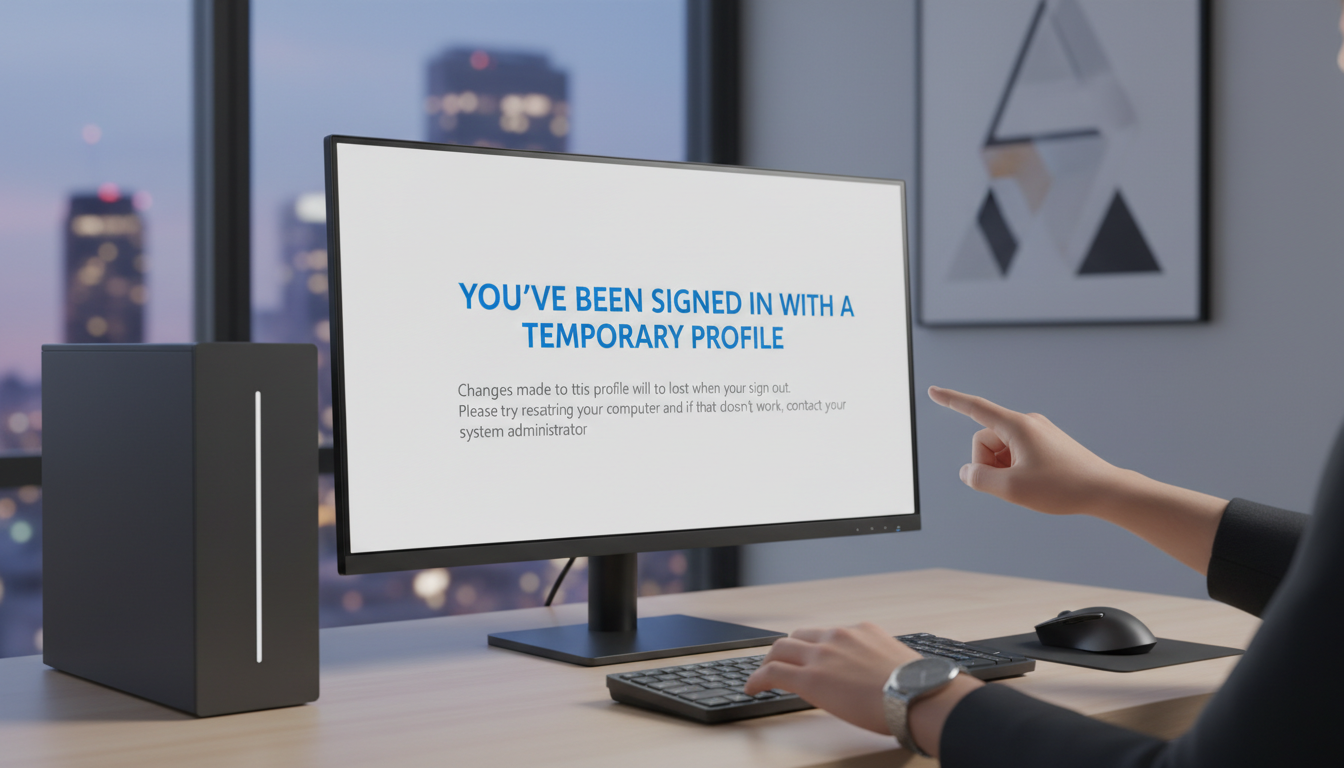
What Is the Temporary User Profile Error?
If you’ve ever logged into Windows and seen a message saying “You’ve been signed in with a temporary profile,” you know how alarming it can be. All your files, settings, and desktop customizations seem to have disappeared. Don’t panic — your data is still there, and this issue is fixable.
Why Does This Happen?
The temporary profile error occurs when Windows can’t load your user profile properly. Common causes include:
- Corrupted user profile registry keys — The most common cause
- Windows updates gone wrong — Failed updates damaging profile data
- Antivirus or security software conflicts — Blocking profile access
- Hard drive errors — Bad sectors affecting profile files
- Insufficient disk space — Not enough room to load the profile
The Permanent Fix: Edit the Registry
This is the method that worked for me and countless others:
Step 1: Access the Registry Editor
- Press Windows + R, type
regedit, and hit Enter - Navigate to:
HKEY_LOCAL_MACHINE\SOFTWARE\Microsoft\Windows NT\CurrentVersion\ProfileList
Step 2: Identify the Corrupted Profile
- Look for folders starting with
S-1-5-followed by long numbers - You’ll likely see two similar entries — one ending in
.bakor.ba - Click each one and check the ProfileImagePath on the right to find your username
Step 3: Fix the Profile Keys
Here’s the critical part:
- If you see a profile without .bak and one with .bak:
- Rename the one without .bak to something like
S-1-5-xxx.old - Rename the one with .bak by removing the .bak extension
- Simply remove the .bak extension
00Step 4: Restart and Verify
- Close Registry Editor
- Restart your computer
- Log in normally — your profile should load completely
Alternative Method: Create a New Profile and Transfer Data
If the registry fix doesn’t work, you can create a new profile:
- Create a new local user account in Settings > Accounts
- Log into the new account
- Copy your files from
C:\Users\[OldUsername]toC:\Users\[NewUsername] - Delete the old corrupted profile
Prevent This From Happening Again
To avoid future profile issues:
- Keep Windows updated — But pause updates if you’re in the middle of important work
- Run regular disk checks — Use
chkdskmonthly - Maintain free disk space — Keep at least 20GB free on your C: drive
- Back up your profile regularly — Use File History or OneDrive
- Scan for malware — Run Windows Defender weekly
Conclusion
The temporary user profile error looks scary, but it’s almost always fixable with a simple registry edit. In my case, renaming the .bak profile and setting State and RefCount to 0 restored everything perfectly. Your files, settings, and desktop will all come back as if nothing happened.